A little while back I posted a short version of this: I described a scheduled WhatsApp notification in plain English, and seven minutes later I had a Cloud Integration iFlow zipped up and ready to import. A lot of you asked the obvious next question — okay, but what's actually in it, and what do I still have to do myself?
Fair question. So here's the whole thing, opened up. No hand-waving. This is exactly what CoIntegrate generated, why each piece is there, and the one part that's genuinely on you: the Meta setup.
The short version, before we dig in: for this demo I hard-coded the Content Modifier with the values that get sent to WhatsApp — the recipient, the message, the IDs. It's only there so the flow has something to send. That's the easy 5%.
In your world, that Content Modifier is really just a placeholder. Swap it for whatever should actually trigger the notification — a sender adapter pulling data from any system, an MPL log event from one of your other iFlows, an order that just shipped, a payment that cleared, a support ticket that breached SLA. Anything you'd want to hear about on WhatsApp. The possibilities are genuinely endless.
The real work is everything that comes after that first step — the part that actually talks to WhatsApp — and that's what CoIntegrate wrote for you.
Two halves of a WhatsApp notification
Any "send a WhatsApp from CPI" job is really two jobs, and it helps to keep them separate in your head.
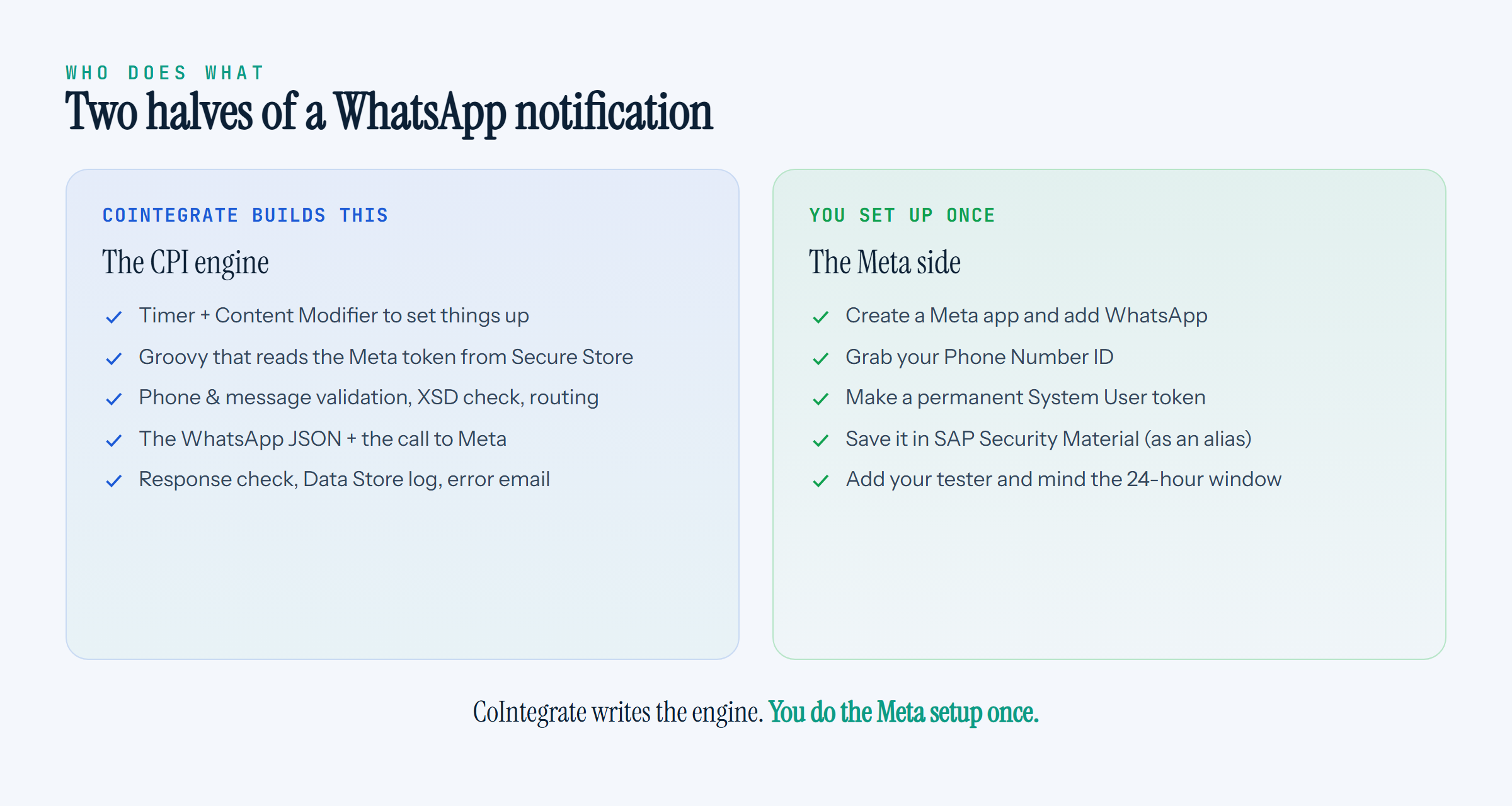
One half lives in SAP: the flow that takes your message, checks it, calls WhatsApp, and handles what comes back. That's fiddly to build by hand and easy to get subtly wrong — one wrong adapter version and the thing won't even open in the editor. This is the half CoIntegrate builds.
The other half lives over at Meta: a WhatsApp app, a phone number ID, and an access token. No AI can do this bit for you — it's your Meta account, your number, your token. This is the half you do once, and then mostly forget about.
Most of the confusion I see online comes from people mixing the two up. So let's take them one at a time — starting with the half you don't have to think about.
Part 1 — build it in one prompt
Here's the good news: you don't build the SAP half by hand. You describe it. Log in to CoIntegrate.io (free, email only, no card), start a build, and paste something like this:
A business needs to send scheduled WhatsApp notifications to customers without a manual trigger. The integration should prepare the recipient, message, API endpoint, and notification metadata, construct a WhatsApp-compatible JSON request, validate the notification before sending it through an external WhatsApp gateway, and handle successful and failed API responses separately.
Expected composition: Timer Start → Content Modifier (Initialize Context) → Groovy Script (Prepare Notification) → JSON Validator → Router (Notification Validation) → Groovy Script (Build WhatsApp JSON) → Request Reply → HTTP Receiver (WhatsApp Gateway) → Router (API Response) → Data Store Write (Success Log) / Exception Subprocess → End Event.
Element coverage: Timer Start Event, Content Modifier, Groovy Script, JSON Validator, Router, Request Reply, HTTP Receiver, Data Store Write, Exception Subprocess.
Emitted-vs-plan checks: Timer is the only trigger; no LIP or Process Call is used; notification data is initialized as properties; Groovy prepares and constructs the outbound WhatsApp JSON; the payload is validated before transmission; the Router handles valid/invalid notification paths and API success/failure responses; successful delivery information is persisted in the Data Store; failures are handled through the Exception Subprocess.
A couple of minutes later you've got the finished iFlow back — the Groovy, the validation, the Meta call, the logging, the error path, all written and all checked, ready to import. You don't write a single line of it. So honestly, don't worry about the internals — that's the whole point of CoIntegrate: it builds this half for you, and you get on with your day.
But if you're the sort who likes to know what's under the bonnet before shipping to a real tenant (and in SAP, you should), here's exactly what that one prompt built. 👇
What CoIntegrate built for you
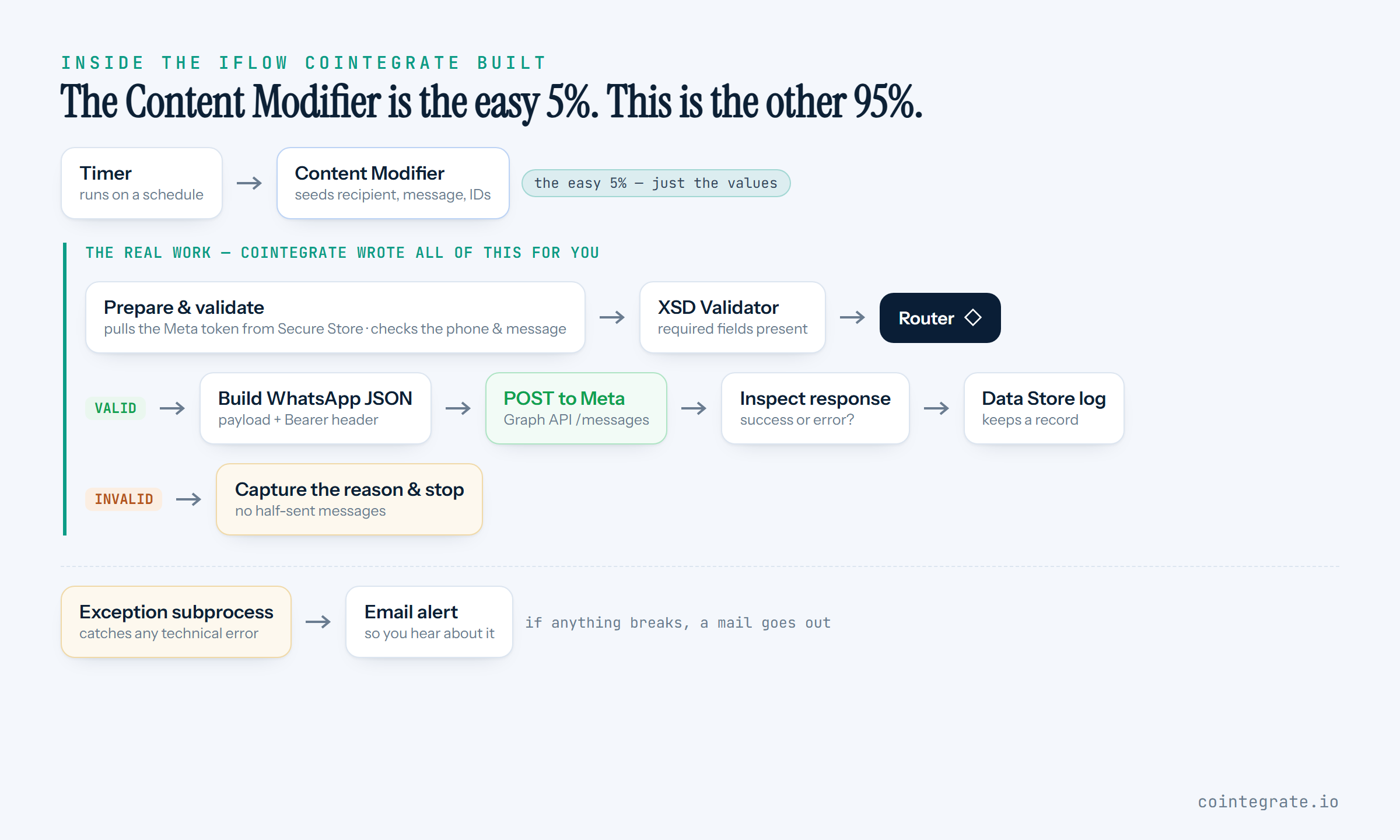
Here's the whole flow at a glance. It looks like a lot, and that's the point — this is what you'd otherwise be wiring by hand.
Let's walk it.
The Content Modifier — the easy bit everyone fixates on
The flow starts on a Timer (swap it for an HTTPS sender later if you'd rather trigger it from another system). Right after it sits a Content Modifier, and honestly, this is the simplest step in the whole flow. All it does is put a few values into memory so the rest of the flow can use them:
- who the message goes to,
- what the message says,
- your WhatsApp Phone Number ID,
- the name of the credential to use,
- and the housekeeping bits (the API endpoint, the log store, the alert email).
Every one of those is an externalised parameter — a {{placeholder}} you fill in on the iFlow's Configure screen, not something baked into the code. That's the bit you set for your landscape. It's a two-minute job. And it's where most "tutorials" stop, which is exactly why people think this is easy.
And remember — for the demo these values are fixed. In a real flow you'd usually replace this whole step with your actual trigger (a sender adapter, an MPL event, an order record) feeding the recipient and message in dynamically. Everything downstream stays exactly the same.
It isn't the hard part. The hard part is next.
Reading the token — safely — and checking the message
The first real step pulls your Meta access token out of SAP's secure credential store. Not from a property, not from the script, not from a config field someone can screenshot — from Security Material, where it belongs:
def secureStore = ITApiFactory.getApi(SecureStoreService.class, null)
def cred        = secureStore.getUserCredential('Meta_WhatsApp_Token')
def bearerToken = new String(cred.getPassword())   // never hard-coded, never logged
Same step, it sanity-checks what you're about to send. An empty message or a badly formatted number shouldn't turn into a failed API call — it should stop right here, cleanly:
if (!recipientPhone.matches('\\+[1-9]\\d{6,14}')) {
    // not a proper +country number — stop now, don't bother Meta
}
Little thing, big difference. WhatsApp wants numbers in E.164 format (+61412345678, no spaces, no dashes). Catching that here means you get a clear "bad number" instead of a cryptic 400 from Meta ten seconds later.
After that a tiny XSD Validator confirms the required fields are actually present, and a Router splits the flow in two: everything's good → go send it; something's off → don't. No half-sent messages, no guessing.
Building the WhatsApp call
On the good path, the next Groovy step shapes the exact JSON Meta's WhatsApp Cloud API expects:
{
  "messaging_product": "whatsapp",
  "recipient_type": "individual",
  "to": "+61412345678",
  "type": "text",
  "text": { "preview_url": false, "body": "Your order #10423 has shipped." }
}
…and sets the two headers that make it actually work — the bearer token it just read, and the path to your specific number:
message.setHeader('Authorization', 'Bearer ' + bearerToken)
message.setHeader('CamelHttpPath', '/' + phoneNumberId + '/messages')
Then a plain HTTP call posts it to graph.facebook.com. That's the moment the message leaves SAP and lands on someone's phone.
Knowing whether it actually worked
A call returning 200 doesn't always mean the message went out — Meta can accept your request and still tell you something's wrong in the body. So the flow reads the response and decides for itself:
if (parsed?.messages) {
    // success — keep the WhatsApp message id
} else if (parsed?.error) {
    // failure — keep Meta's error code + reason, so you know why
}
Whatever happens, it gets written to a Data Store so there's a record, and if anything throws along the way, an exception subprocess catches it and emails you. You're never left wondering whether the 9am notification actually went.
None of that — the secure token read, the validation, the routing, the response check, the logging, the error email — is something you'd want to hand-write on a Tuesday afternoon. That's the whole point. You described the outcome; CoIntegrate wrote the plumbing.
Part 2 — the Meta setup (your side, done once)
Right — that's the half you don't have to touch. Now the half that's yours: it's tied to your own Meta account, so no tool can do it for you. The good news is it's a one-time setup, and once the token's in place you rarely touch it again. Here's the shape of it.
- Create a Meta app at Meta for Developers and pick the WhatsApp use case. This gives you a place to hang everything else.
- Add WhatsApp and grab your Phone Number ID. This trips people up: the Phone Number ID is a long number Meta assigns (like
123456789012345) — it is not the actual phone number. SAP calls Meta using this ID, not the visible number. - Add a tester. In the early days Meta only lets you message numbers you've added as recipients. Add your own phone, accept the prompt, and send yourself a test from Meta's screen first.
- Make a permanent token. The token on the dashboard expires — fine for a quick test, useless for a real iFlow. Create a System User in Business Settings and generate a token with the
whatsapp_business_messagingpermission. It starts withEAA…. Treat it like a password. - Test it in Postman before SAP. Fire one message with your Phone Number ID and token. If it works in Postman, Meta's side is good, and any later problem is squarely in the iFlow — which makes life much easier to debug.
- Store the token in SAP Security Material, as a User Credential named
Meta_WhatsApp_Token. Then the iFlow references that name — never the token itself. That's why the Groovy earlier asked Secure Store for an alias instead of carrying a secret around.
One more thing worth knowing so you're not surprised: WhatsApp only lets you send free-form text within 24 hours of the person last messaging your business number. Outside that window you use a pre-approved template. For testing, just message your business number first to open the window — then run the flow.
The click-by-click version. The steps above are the shape of it — enough to see what's involved. The full walkthrough is in the setup guide we put together while building this: every Meta screen, the exact permissions to tick, a Postman test to confirm it all works before you touch SAP, the Security Material values, and a troubleshooting table for the usual 401s and delivery hiccups.
👉 Open the Meta WhatsApp Cloud API setup guide (PDF) — free, no sign-up.
What's done for you vs what you fill in
If you like a clean line between the two, here it is. Everything in the flow is generated. The only things you touch are these externalised values on the Configure screen:
| You fill in | Example | Where it comes from |
|---|---|---|
| Meta API Endpoint | https://graph.facebook.com/v19.0 | Meta Graph API |
| WhatsApp Phone Number ID | 123456789012345 | Meta → WhatsApp setup |
| Recipient Phone Number | +61412345678 | your tester / customer |
| Notification Message | Your appointment is confirmed. | you |
| Meta Credential Alias | Meta_WhatsApp_Token | your SAP Security Material |
| Data Store Name | WhatsApp_Notification_Log | you pick it |
| Alert Email + SMTP | ops@yourco.com | your mail setup |
Fill those in, deploy, done. The Groovy, the validation, the routing, the error handling — all already there.
Now make it yours
The demo sends on a schedule, but that's just the trigger. Swap the front of the flow and the same engine covers most of what a business actually wants on WhatsApp:
- Orders — "your order shipped," fired when the order system drops a message in.
- Payments — a confirmation when a payment clears, or a nudge when an invoice goes overdue.
- HR — an onboarding reminder, or a "your leave is approved" ping.
- Integration monitoring — the meta move: your other iFlows tell this one when they fail, and you get the alert on WhatsApp instead of finding out from an angry email.
In every case you're changing two things: what kicks it off, and who gets the message. The hard middle — the WhatsApp call, done properly — stays exactly the same.
Try it yourself
Everything here is free to poke at:
- SAP CPI — a free SAP BTP trial account gets you an Integration Suite tenant to play in.
- Meta — the WhatsApp Cloud API has a free test number, so you can validate the whole thing before you ever register a real business number.
- CoIntegrate — describe your notification in plain English and get the iFlow back, correct and ready to deploy. Free to start, email only, no card, at CoIntegrate.io.
The reason CoIntegrate exists is this exact situation: the WhatsApp half of this flow is genuinely finicky, and a normal chatbot will hand you an iFlow that looks right and falls over the moment you import it. Describe it instead, and you get one that actually loads, validates, and runs — so the only thing left is the Meta setup, which was always going to be yours anyway.
That's the honest split. CoIntegrate builds the engine. You do the Meta setup once. Then you just change the message.
Building SAP CPI iFlows shouldn't be the slow part. CoIntegrate lets you build, deploy, monitor and troubleshoot them in plain English — free to start at CoIntegrate.io. Powered by BotLabHQ.